

How to send money to Syria with nsave

Step-by-Step Guide
You can send money from your nsave USD account to Syria for cash pickup at any National Islamic Bank Syria (NIB Syria) branch. The recipient collects the funds in US Dollars (USD) using a pickup code that you share with them after confirming the transfer.
This guide walks you step-by-step through how to set up the transfer, share the pickup details with your recipient, and track the transaction until the cash is collected.
A note on fees: For transfers below $301.00, nsave charges a fair service fee of $3.00. Larger transfers benefit from lower fees as a percentage of the total amount. This guide is focused on bank withdrawals. Check the app to discover all features that are available to your account.
Part 1: Set up the transfer
1. Open New Transfer and choose Transfer
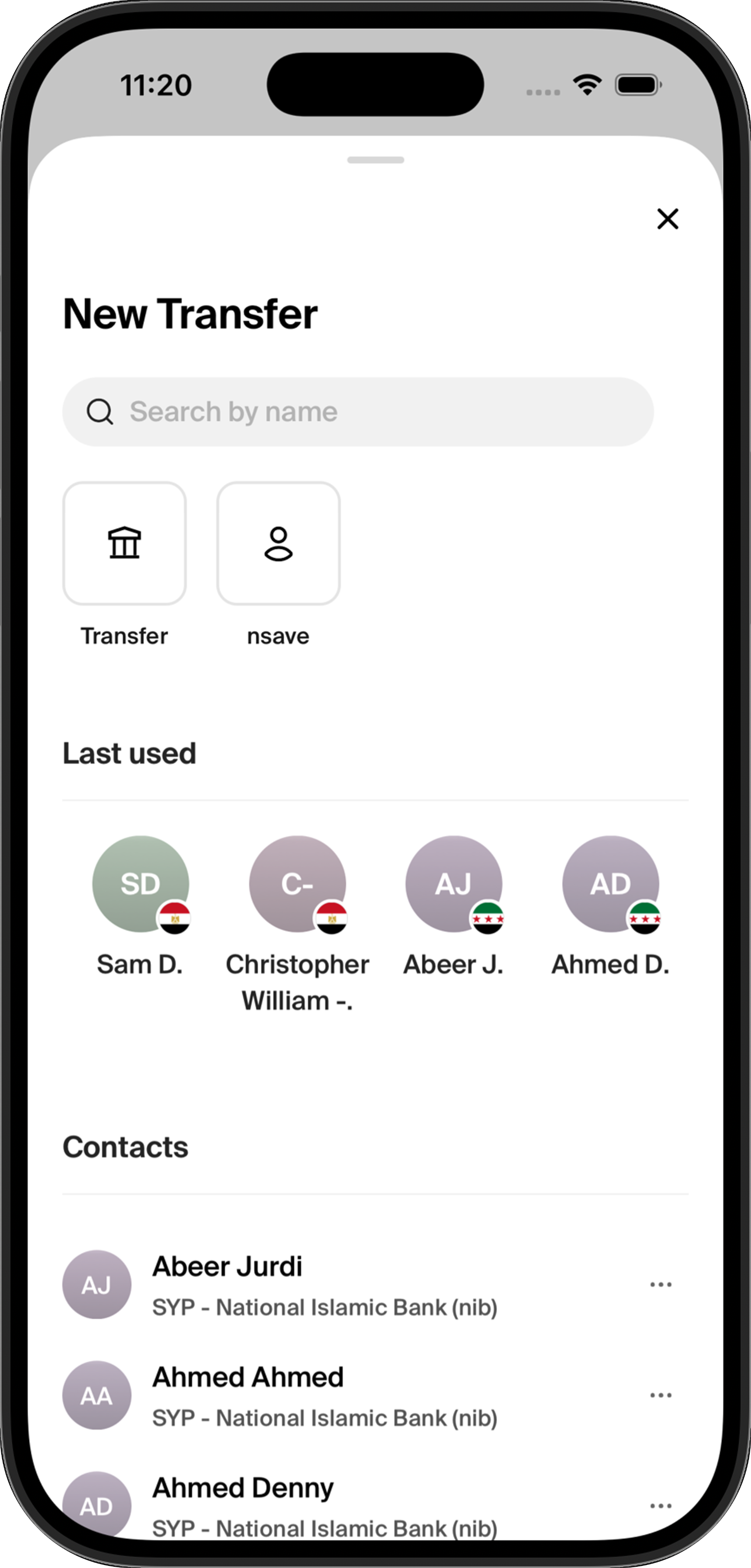
From your nsave home screen, tap Send to open the New Transfer screen.
Tap Transfer to start a new transfer to a bank or cash pickup destination. If you've sent money before, your previous recipients will appear under Last used for quick access. You can also search by name or scroll through your saved contacts below.
2. Select the country
On the Country of bank screen, choose where you want to send the money.
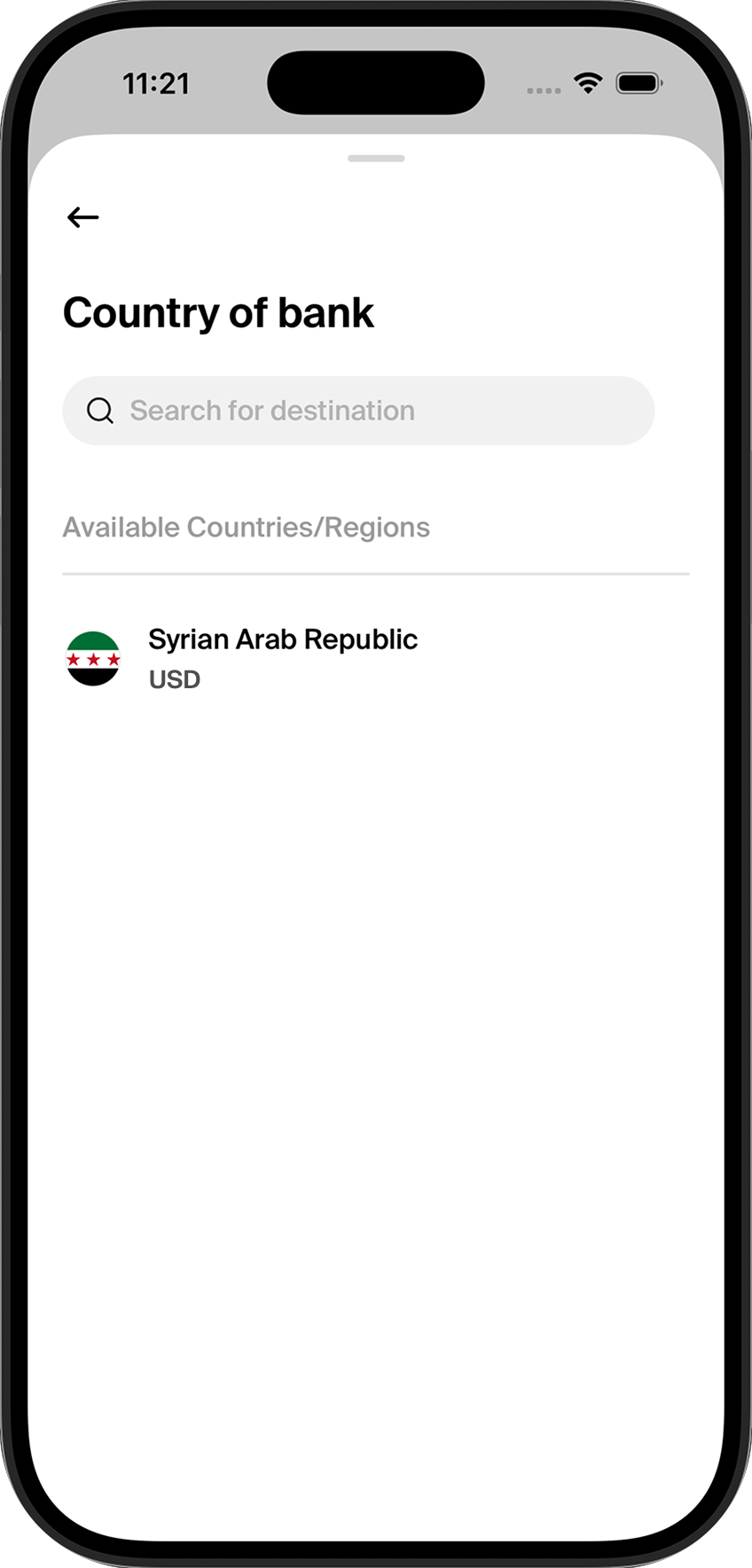
Tap Syrian Arab Republic (SYP) to continue.
3. Enter the amount
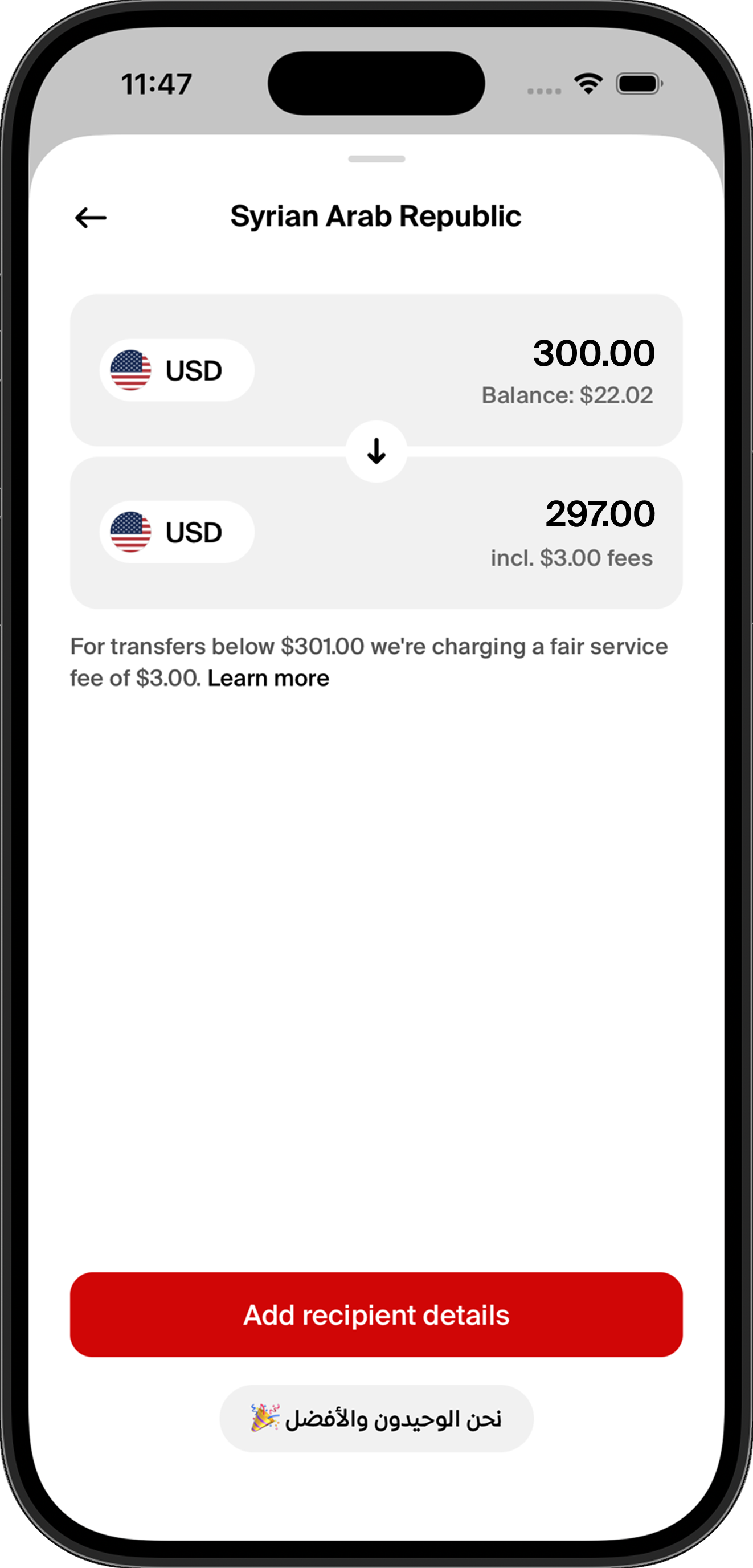
You'll land on the amount screen. Your USD account is shown at the top, and the amount the recipient will collect in USD is shown below.
In this example:
- You send: $13.00 from your USD balance
- Recipient gets: $10.00 USD
- Included fees: $3.00
About the fee: For transfers below $301.00, nsave charges a flat $3.00 service fee. Above that threshold, the fee scales differently. Tap Learn more in the app to see the full fee structure.
When you're happy with the amount, tap Add recipient details.
4. Add the recipient
Select an existing contact or add a new recipient. For Syria, you'll need the recipient's full name as it appears on their ID, since they'll need to present it at the branch when collecting the cash.
You can also add a reference (e.g. "Family Support") to help both you and the recipient identify the transfer.
5. Review and confirm
The Cash Pickup review screen shows the full summary of the transaction:
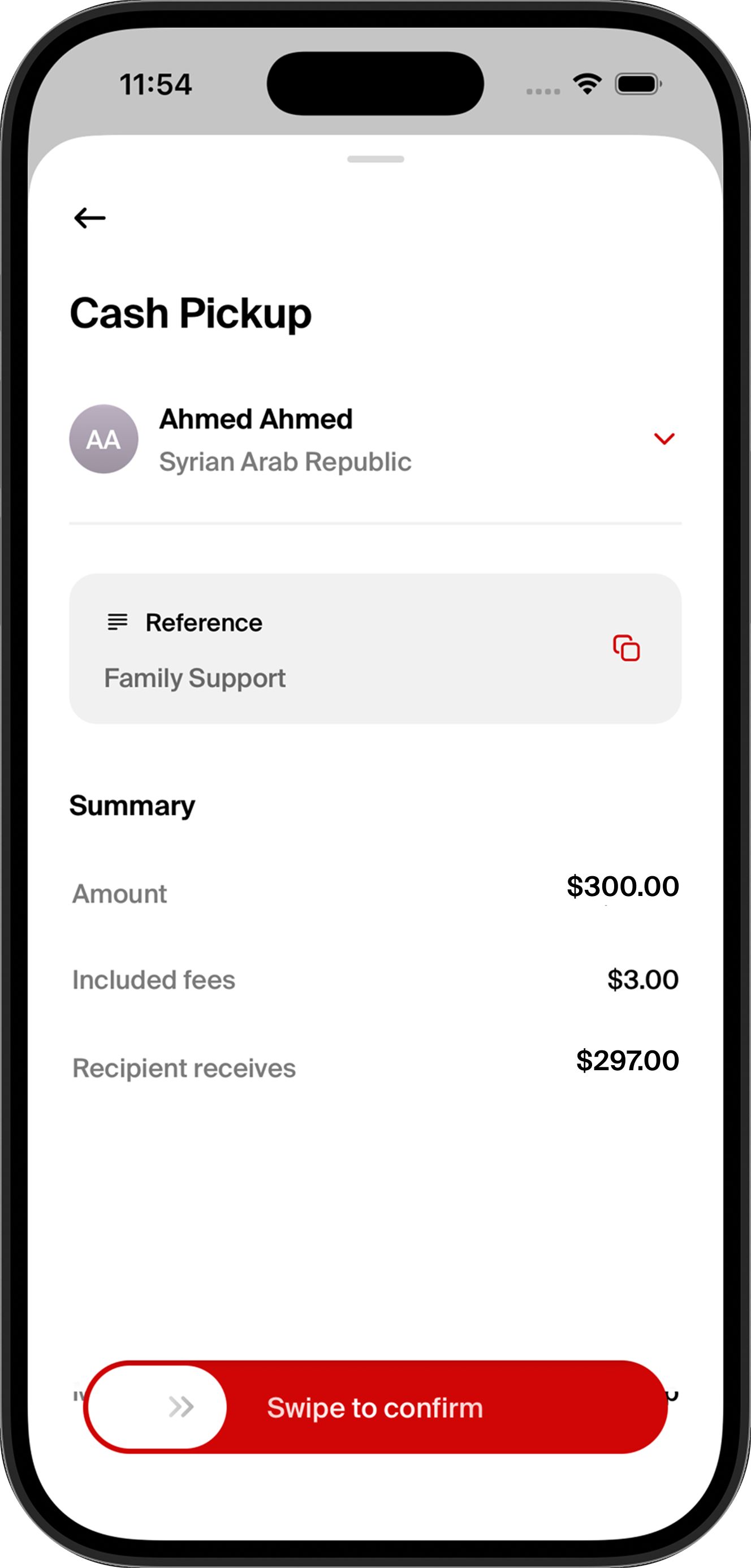
The Cash Pickup review screen shows the full summary of the transaction. Carefully check every line:
- Recipient: the recipient's full name and destination country
- Reference: the note you added (e.g. "Family Support")
- Amount: the total amount deducted from your USD balance
- Included fees: the service fee
- Recipient receives: the exact amount of USD the recipient will collect
When everything looks correct, swipe the red button to the right to confirm the transfer. This swipe-to-confirm design is intentional: it prevents accidental sends and gives you one last moment to verify the details.
2. Get the pickup code and details
The Cash Pickup sheet shows everything your recipient needs to collect the cash:
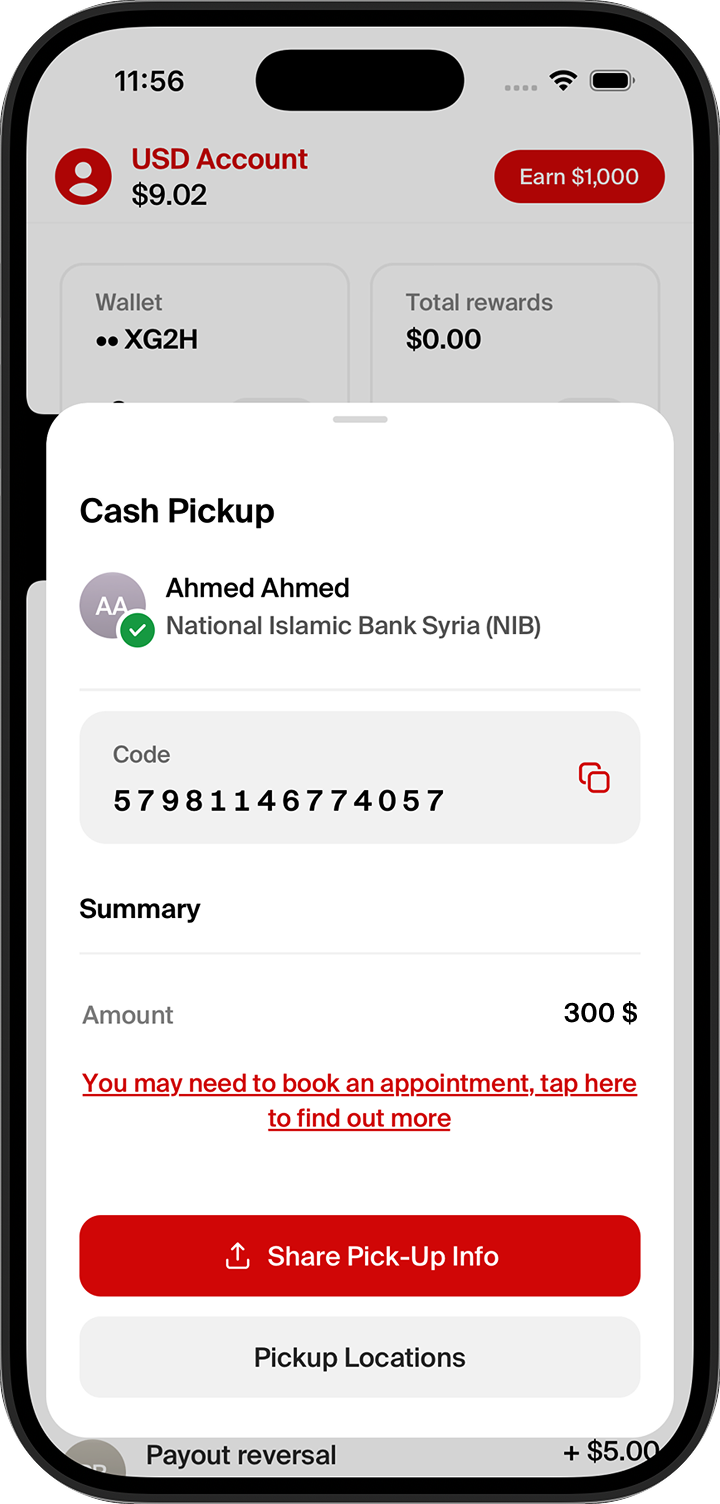
- Code: a 15-digit pickup code the recipient presents at the branch
- Recipient: the recipient's name and the pickup bank (National Islamic Bank Syria)
- Amount: the USD amount to be collected
Important: Your recipient may need to book an appointment at the branch before collecting. Tap the red text in the app to find out more.
Tap Share Pick-Up Info to send the code and details to your recipient via WhatsApp, SMS, email, or any other app installed on your phone.
You can also tap the copy icon next to the code to copy it manually.
3. Find the nearest pickup location
Tap Pickup Locations to see the full list of NIB Syria branches where the cash can be collected.

Branches are available across major Syrian cities including Damascus, Aleppo, Hama, and Homs. Tap Open in Maps next to any branch to get directions.
Share the most convenient branch with your recipient along with the pickup code.
Part 3: Track the transfer
1. See the status on your home screen
Your USD account home screen shows the transaction with its current status:
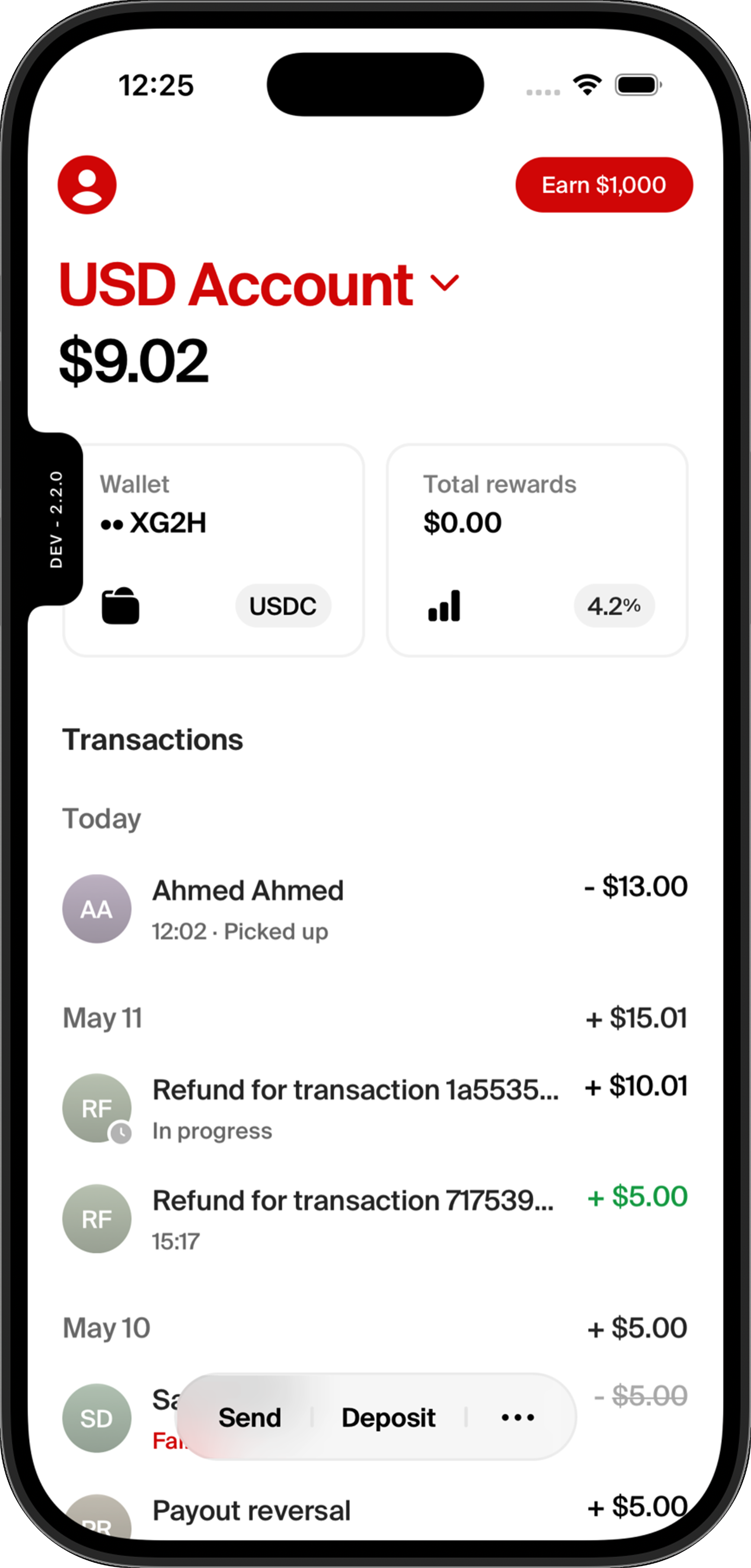
The status updates automatically:
- Ready for pickup: the funds are at the branch and waiting to be collected
- Picked up: the recipient has successfully collected the cash
2. View the full timeline
Tap the transaction to see a detailed timeline of every step the transfer went through:
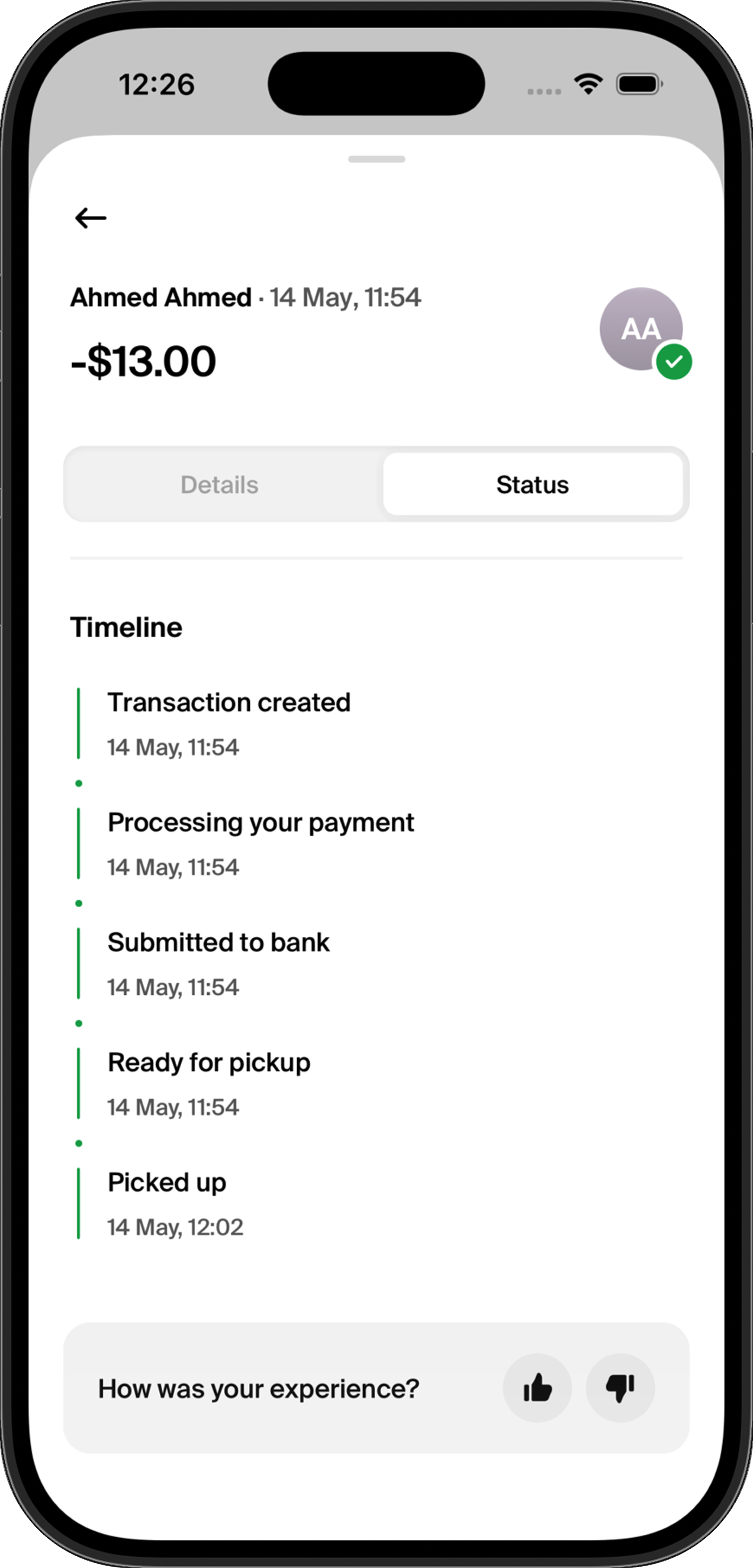
The timeline shows:
- Transaction created: when you confirmed the transfer
- Processing your payment: nsave is preparing the transfer
- Submitted to bank: the funds have been sent to National Islamic Bank Syria
- Ready for pickup: the recipient can now collect the cash
- Picked up: the cash has been collected at the branch
Each step is timestamped so you always know exactly where the transfer is.
Quick checklist before every transfer
- ✅ Recipient's full name matches their official ID exactly
- ✅ Country selected is Syrian Arab Republic (SYP)
- ✅ Amount and exchange rate reviewed on the confirmation screen
- ✅ Fees reviewed (and the $301.00 threshold considered)
- ✅ Pickup code and branch shared with the recipient
- ✅ Recipient knows whether an appointment is required
FAQs
How long does it take for the funds to be ready for pickup? Most transfers are ready for pickup within minutes of confirmation. You'll get a notification as soon as the funds arrive at the branch, and the status will update to Ready for pickup.
Which bank does my recipient collect the cash from? Cash pickups in Syria are handled through National Islamic Bank Syria (NIB Syria). Branches are available in Damascus, Aleppo, Hama, Homs, and other major cities.
What does my recipient need to bring to the branch? Your recipient needs the pickup code (15 digits) you shared with them, and a valid government-issued ID matching the name on the transfer.
Does my recipient need to book an appointment? Some branches require an appointment before pickup. Check the in-app link ("You may need to book an appointment") for the latest branch-specific guidance.
What's the fee for sending to Syria? For transfers below $301.00, nsave charges a flat $3.00 service fee. Larger transfers have a lower percentage fee. Tap Learn more on the amount screen for the full breakdown.
Can I cancel a transfer after confirming? Once the cash is ready for pickup at the branch, the transfer cannot be cancelled. If you confirmed by mistake, contact nsave support as quickly as possible. We may be able to recall the funds if they haven't been collected yet.
What if my recipient can't collect the cash? If the cash hasn't been collected within the bank's holding period, it will be returned to your nsave USD balance automatically. You'll see this as a Payout reversal or Refund in your transaction history.
