

How to deposit crypto to your nsave account (in-app)

Step-by-Step Guide
You can now deposit crypto directly into your nsave USD account from within the nsave mobile app — no need to use the web portal anymore.
When you send a supported stablecoin to your nsave wallet address, it is automatically converted to USD and added to your nsave USD balance. This guide walks you step-by-step through how to find your deposit details in the app, and then shows a real example of sending USDC from Revolut to nsave.
A note before you start: If you're new to crypto, we strongly recommend starting with a small test deposit before sending larger amounts. Crypto transfers are irreversible, so getting comfortable with the process first is the safest approach.
Part 1: Find your nsave deposit details
1. Open Crypto Deposit in the nsave app
In the nsave app, go to your USD account and tap Deposit, then choose the crypto deposit option. You'll land on the Crypto Deposit screen.

You'll see two dropdowns:
- Network — the blockchain network the funds will travel over
- Assets — the crypto asset (stablecoin) you'll be sending
Important: The selected Network and Asset must match exactly what you are sending. If they don't match, your funds will be lost.
For now, nsave only supports USDC on the Solana network. More networks and assets will be added at a later stage.
Once selected, tap Show Address.
2. Read and accept the disclaimer
Before your address is shown, a disclaimer reminds you of the most important rule of crypto deposits:

Your assets will get lost when the asset and network don't match exactly. If you are new to crypto, we recommend starting with a small deposit.
Tap Show Address to continue.
3. Get your deposit address
You'll now see your personal nsave deposit details:

This screen shows everything the sending platform needs:
- QR code — scan this with your sending app to fill in the address automatically
- USDC · Solana Network — the asset and network this address accepts
- Recipient name — your name on the nsave account
- Wallet Address — your unique nsave deposit address
- Min Deposit Amount — the smallest amount nsave will accept (e.g. $1.00)
You have three ways to use this address when sending from another platform:
- Scan the QR code with your sending app
- Copy the wallet address by tapping the copy icon next to it
- Share the address by tapping Share Address at the bottom
Always copy the address using the copy icon — never type it manually. Even a single wrong character in a wallet address means the funds will be sent to the wrong place and lost forever.
Part 2: Send USDC from Revolut to nsave
The example below uses Revolut, but the same steps apply to most exchanges and crypto apps (Coinbase, Binance, Kraken, etc.).
1. Add nsave as a recipient in Revolut
In the Revolut app, go to your crypto section, choose Send / Withdraw, and select Add new address (or similar).
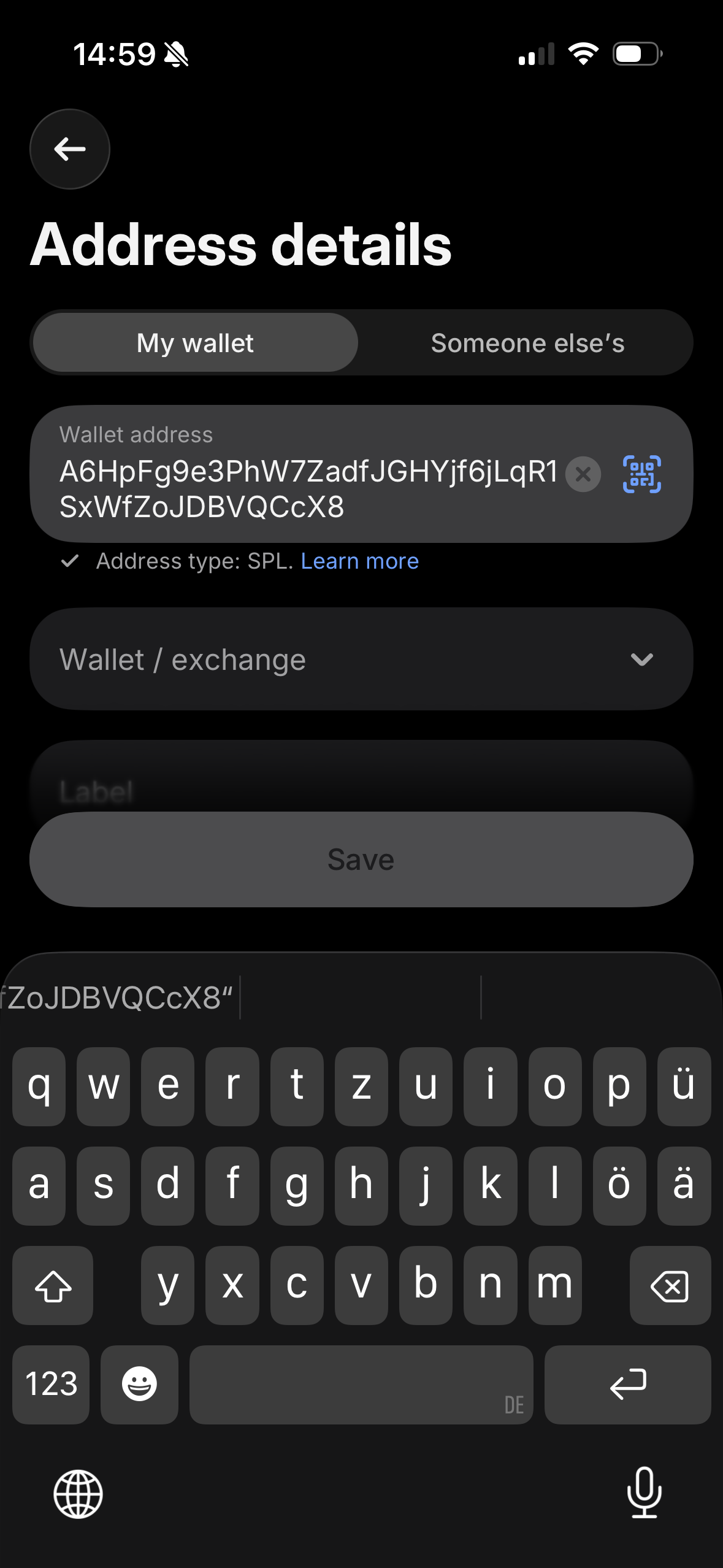
- Make sure My wallet is selected (since this is your own nsave wallet)
- Paste the wallet address you copied from nsave into the Wallet address field
- Revolut should automatically detect the address type — for nsave deposits, this will show as SPL (Solana's token standard)
2. Choose the wallet/exchange
Some platforms — Revolut included — require you to select which wallet or exchange you're sending to. nsave isn't always listed by default.

If you can't find nsave in the list:
- Look for an option called "Other", "Add manually", or similar
- Type nsave as the exchange name
This adds nsave to your list of recognised exchanges for future deposits.
3. Add a label
Give your nsave wallet a name you'll recognise later, such as "My nsave wallet". This makes it easy to find next time you want to deposit.
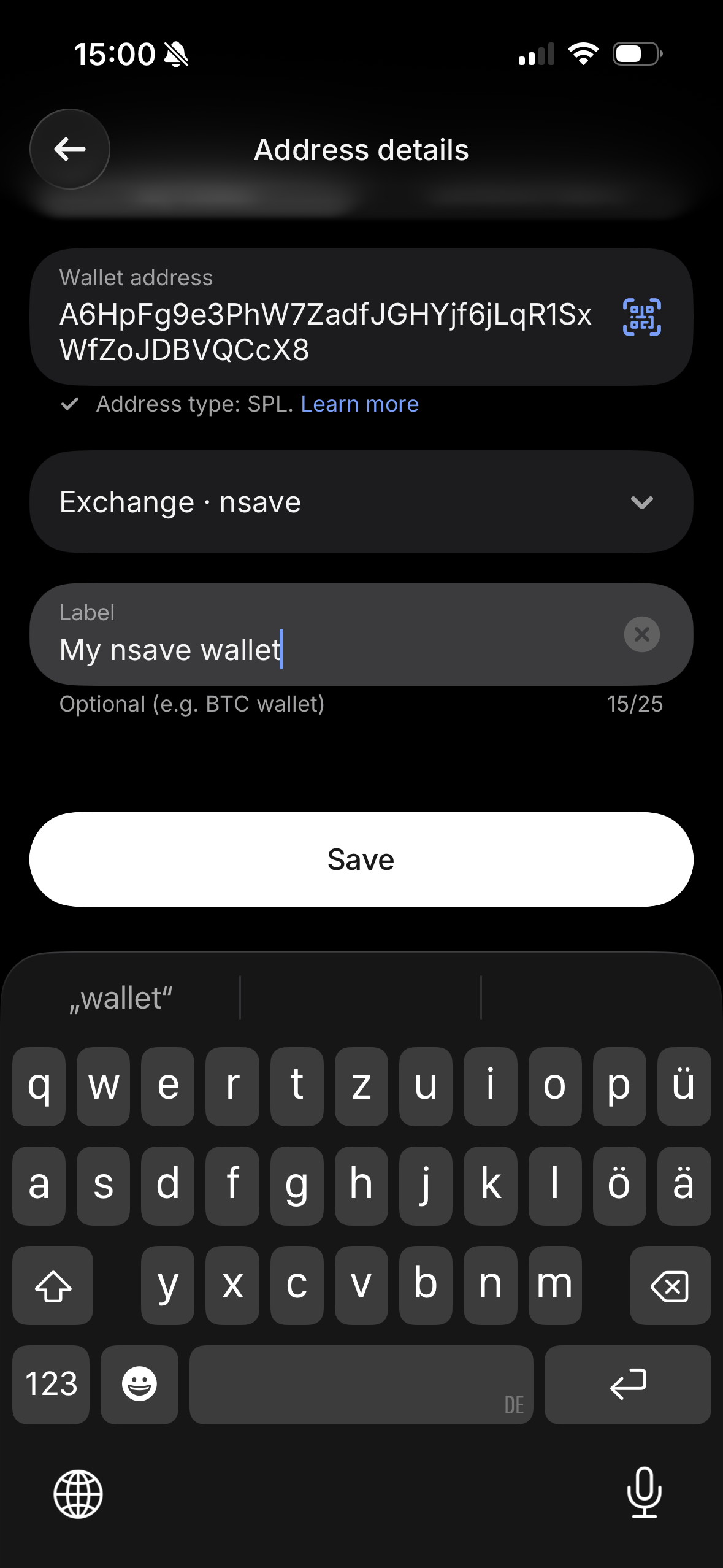
Tap Save.
4. Select the currency and source account
Choose USDC as the currency you want to send. This is critical:

Make sure you are sending the right asset (USDC) on the correct network (Solana).
Sending SOL on the Solana network — or USDC on any other network like Ethereum or Polygon — will not work. Both the asset and the network must match what you selected in the nsave app.
Below the currency, pick the account you're sending from. In this Revolut example, the funds are coming from a SOL crypto balance, which Revolut will exchange to USDC before sending.
5. Enter the amount (start small!)
Enter the amount of USDC you want to send. For your first deposit, start with a small test amount — for example, 1 USDC.

Why start small? Some platforms charge fees on top of the amount you're sending. Testing with a small deposit first lets you confirm everything works before committing larger sums.
Tap Review transfer.
6. Carefully review the transfer
This is the most important step. Check everything before confirming:
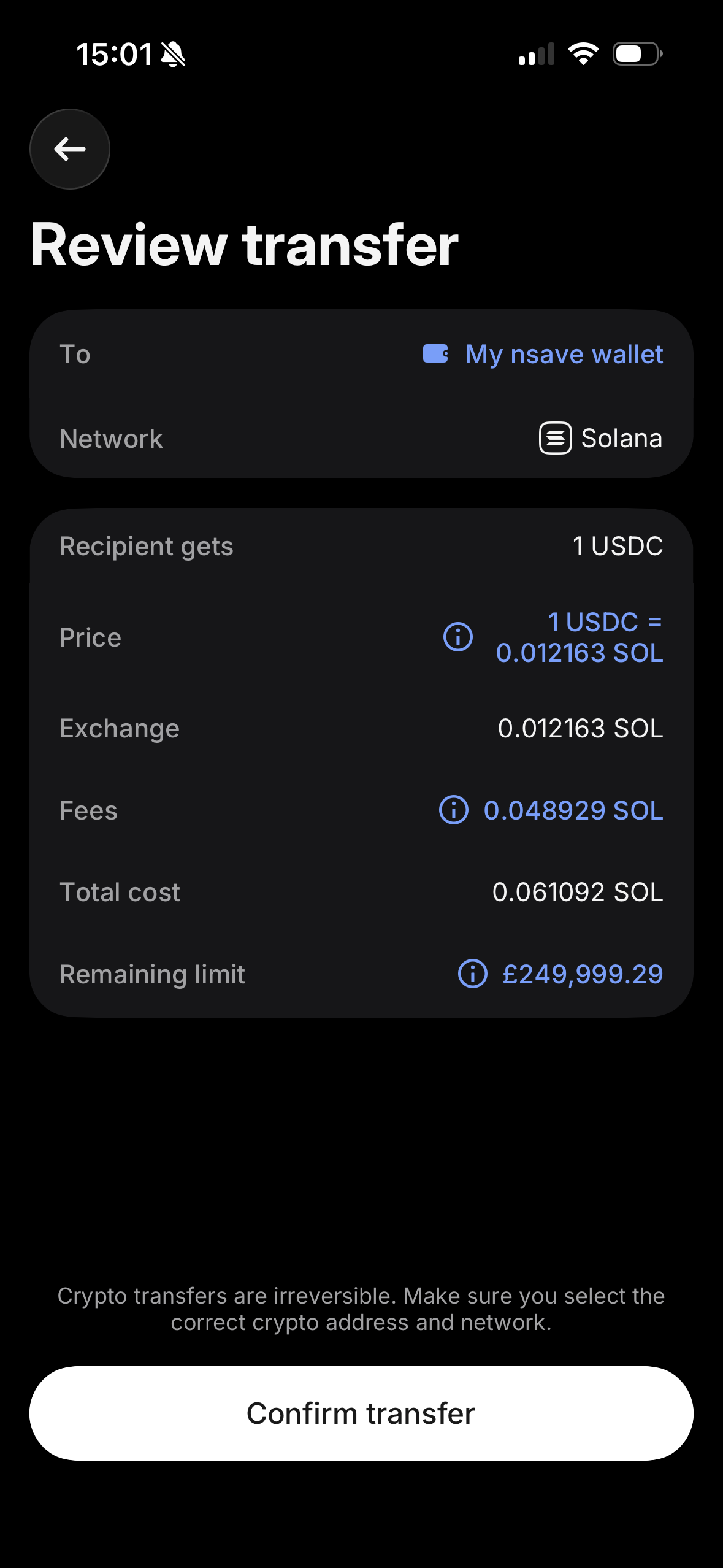
- To — your nsave wallet (the label you saved earlier)
- Network — Solana ✅
- Recipient gets — 1 USDC (the amount that will actually arrive in nsave)
- Price, Exchange, Fees — Revolut's costs for the transfer
- Total cost — what will actually be deducted from your account
Watch out for fees. In this example, Revolut charged 5.19 USDC to send 1 USDC to nsave. That's because the platform fee is fixed regardless of the amount.
With larger amounts, the fee becomes a much smaller percentage of the total. A 5 USDC fee on a 1,000 USDC transfer is 0.5% — much more reasonable.
This is exactly why your first deposit should be a small test amount: to confirm the route works. Once it does, you can send larger amounts more efficiently.
When everything looks correct, tap Confirm transfer.
7. Wait for the deposit to arrive
After confirming, the transfer is processed on the Solana blockchain. You can usually track its progress in the sending app:
You should see status updates like:
- Request processed — the transaction has been broadcast
- Received by recipient's address — the funds have arrived
Solana transactions are typically confirmed within seconds to a few minutes.
8. Funds arrive in your nsave USD balance
The deposit is automatically converted from USDC to USD and added to your nsave USD account. You'll see a transaction labelled "Crypto deposit from SOLANA…" in your transaction history:
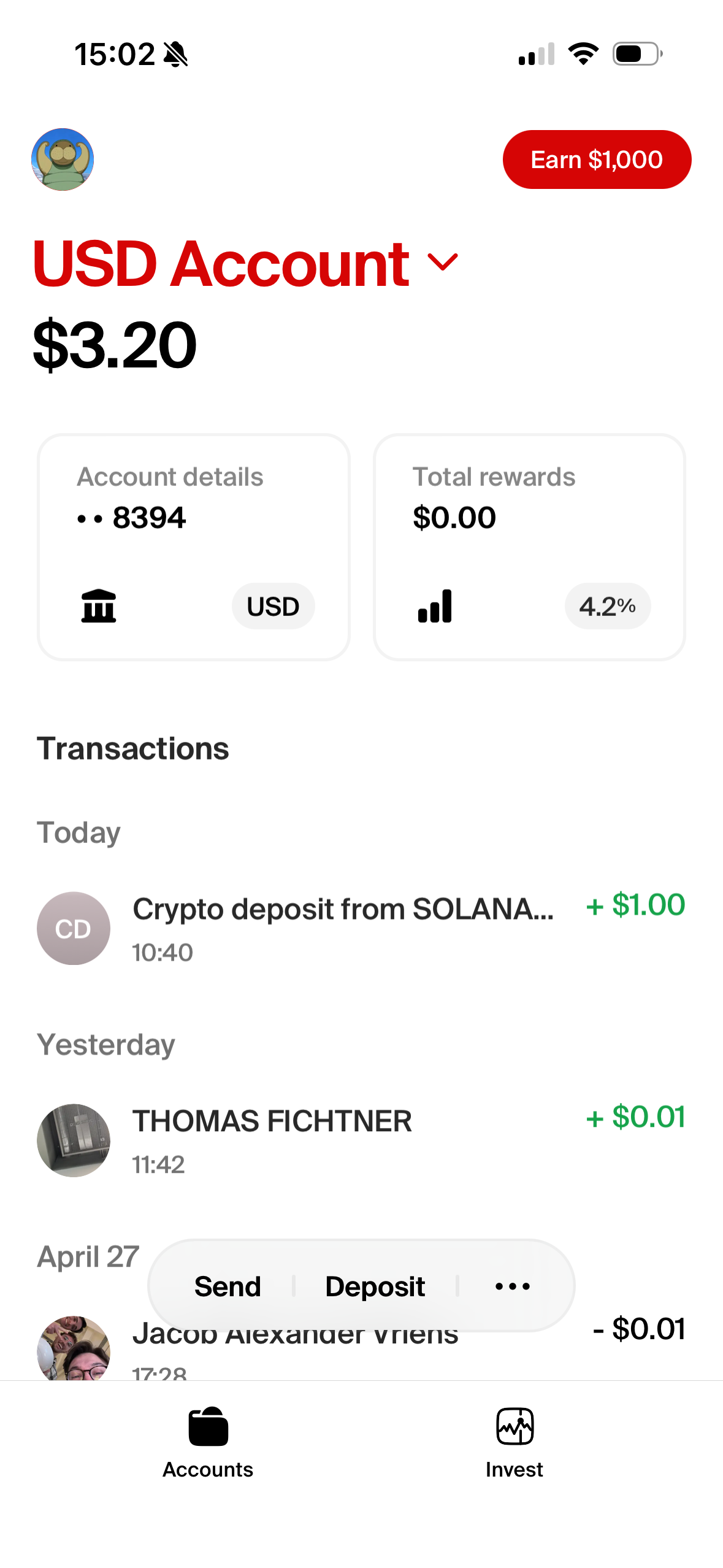
That's it — your funds are now in your nsave USD balance, ready to spend, save, or invest.
Quick checklist before every deposit
- ✅ Asset selected in nsave matches the asset you're sending (USDC)
- ✅ Network selected in nsave matches the network you're sending on (Solana)
- ✅ Wallet address copied with the copy icon — never typed
- ✅ Amount is at or above the minimum deposit ($1.00)
- ✅ Reviewed all fees on the sending platform
- ✅ For first deposits: starting with a small test amount
FAQs
How long do crypto deposits take to appear in my nsave account?
Once the Solana network confirms the transaction (usually seconds to minutes), funds are credited to your USD balance within minutes. Larger transfers may take up to a few hours, but never more than 24 hours.
Which assets and networks are supported in the app?
Currently, nsave's in-app crypto deposit supports USDC on the Solana network only. More networks and stablecoins will be added in future updates. If you need a different network today, you can still use the crypto web portal, which supports USDC, USDT, DAI, USDP, and PYUSD across Ethereum, Polygon, Base, Arbitrum, Avalanche, Optimism, Solana, and Stellar.
What happens if I send the wrong asset or use the wrong network?
The funds will be lost permanently. Crypto transactions are irreversible, and sending the wrong asset or using the wrong network means the funds end up somewhere they can't be recovered. Always double-check both the asset and the network before sending.
What is the minimum deposit amount?
The minimum is shown directly on your deposit details screen. For USDC on Solana it is currently $1.00.
Why did Revolut charge me 5.19 USDC to send 1 USDC in this example?
That's a Revolut fee for sending crypto, not an nsave fee. Many platforms charge fixed fees for crypto withdrawals, which means small transfers are heavily affected by fees while larger transfers are not. Your first deposit should always be a small test, but once you've confirmed the route works, sending larger amounts might be far more cost-efficient.
Explore other methods on how to receive money with nsave →
Note: npay USA Inc. including licensed US financial partners process Stablecoin related activities.
nwealth Inc. is a Delaware corporation that has applied to register as an investment adviser with the U.S. Securities and Exchange Commission ("SEC"). Brokerage and custody services will be provided by Alpaca Securities, LLC, an unaffiliated broker-dealer. Investing involves risk, including the possible loss of principal. Past performance is no guarantee of future results. Nothing on this page is investment, tax, or legal advice, or a recommendation to buy or sell any security.
