

How to send funds from nsave to your stablecoin wallet

Step-by-Step Guide
You can now send crypto directly from your nsave USD account to any external wallet, straight from the nsave mobile app.
When you send, your USD balance is converted into the selected stablecoin and transferred to the recipient's wallet on the chosen blockchain network. This guide walks you step-by-step through how to set up a recipient, review the transfer, and confirm the send.
A note before you start: Crypto transfers are irreversible. If you send to the wrong address or use the wrong network, the funds cannot be recovered. If this is your first time sending crypto from nsave, we strongly recommend starting with a small test transfer before sending larger amounts.
Part 1: Enter the amount you want to send
1. Open New Transfer and choose Crypto
From your nsave home screen, tap Send to open the New Transfer screen. You'll see three options: Transfer, nsave, and Crypto.

Tap Crypto to start a new crypto transfer.
If you've sent crypto before, your previous recipients will appear under Last used for quick access, so you can resend without entering the details again.
2. Enter the amount
You'll land on the Enter Amount screen. Your USD account is shown at the top with your available balance, and the recipient's currency (USDC) is shown at the bottom.

Use the keypad to enter the amount you want to send. You can enter the amount either in USD (what comes out of your account) or in USDC (what the recipient receives). Tap the dropdowns to switch between them.
Make sure you're sending the right asset (USDC) on the correct network (Solana). Both must match the recipient's wallet exactly. For now, nsave only supports USDC sends on the Solana network. More assets and networks will be added at a later stage.
3. Check the fees and amount
As you type, the conversion updates automatically and the included fees are shown:
In this example:
- You send: $101.00 from your USD balance
- Recipient gets: 100 USDC
- Included fees: $1.00 (1%)
How is the fee calculated? Outbound stablecoin transfers carry a 1% fee on the amount you send. For example, sending $1,000 costs $10 in fees, and sending $1,103 costs about $11. The maximum you can send via stablecoin in a single transfer is $3,000. This is exactly why your first transfer should be a small test amount, to confirm the route works, before sending larger amounts.
When you're happy with the amount, tap Review.
Part 2: Add the recipient details
1. Open the Recipient details screen
Next, you'll see the Recipient details screen with three fields to fill in:

- Select Network: the blockchain network the funds will travel over.
- Wallet Address: the recipient's wallet address.
- Label: a name to help you identify this recipient later.
Important: Ensure that the Address and Network match the recipient's wallet exactly. Any mismatch will result in a loss of funds.
2. Select the network
Tap Select Network and choose the network the recipient's wallet supports.

For now, nsave supports Solana for crypto withdrawals.
3. Enter the wallet address and label
Paste the recipient's wallet address into the Wallet Address field, or tap the scan icon on the right to scan a QR code.

Once you've entered a valid address, a green checkmark will appear on the right to confirm the address is correctly formatted for the selected network.
Always paste or scan the address. Never type it manually. Even a single wrong character means the funds will be sent to the wrong place and lost forever.
Then give the recipient a name you'll recognise later in the Label field, such as "my wallet", "Binance", or the recipient's name. This makes it easy to find next time you want to send.
When all three fields are filled in, tap Create contact.
4. Review the recipient method
Before the contact is created, a Review Method sheet appears so you can double-check the details one more time:
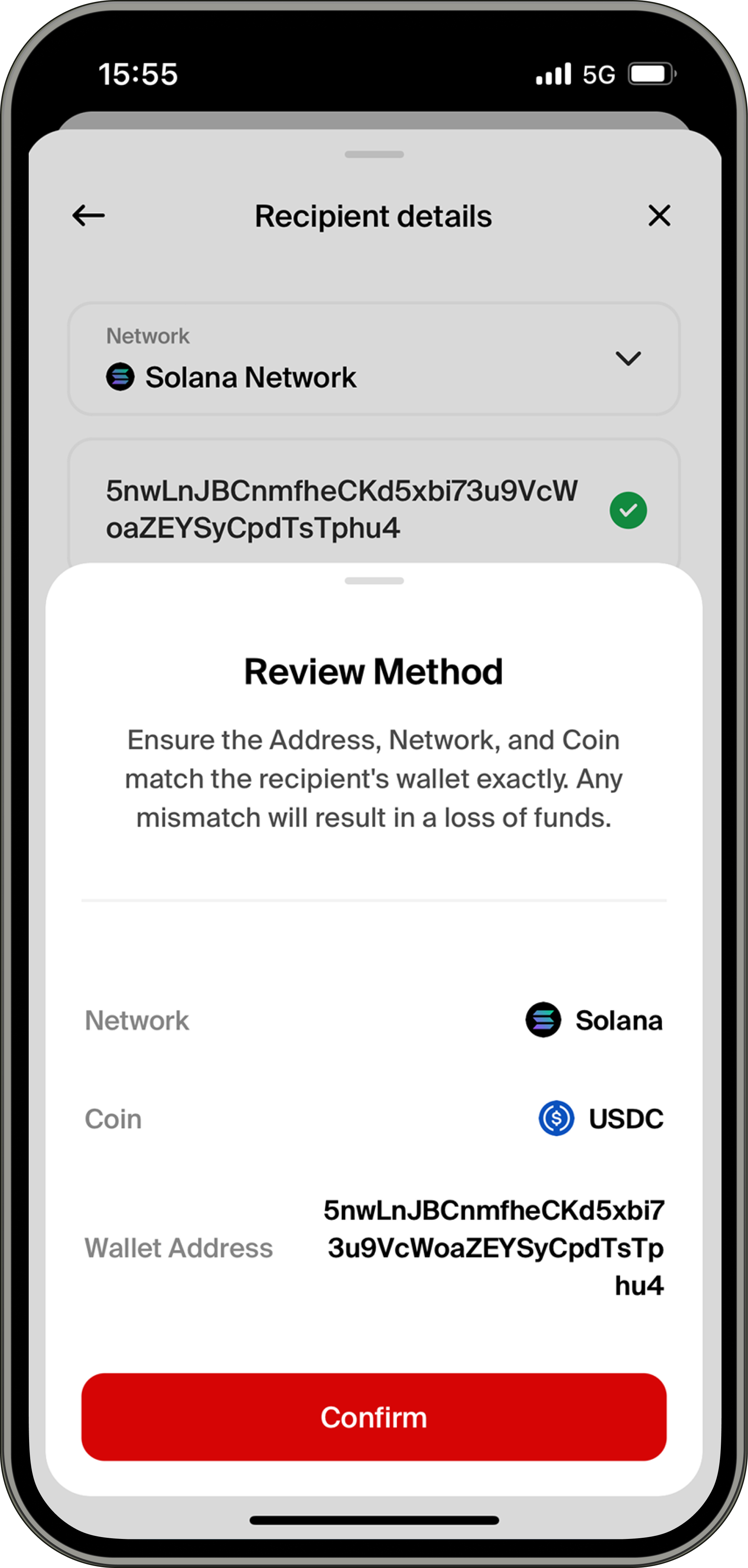
Carefully check:
- Network: Solana
- Coin: USDC
- Wallet Address: the full recipient address
Ensure the Address, Network, and Coin match the recipient's wallet exactly. Any mismatch will result in a loss of funds.
When everything is correct, tap Confirm.
Part 3: Review and confirm the transfer
1. Review the transfer
The Review transfer screen shows the full summary of the transaction:
Carefully check every line:
- Recipient: the wallet name and address (e.g. "my wallet · 5nwLnJ…phu4")
- Cost: the total amount deducted from your USD balance
- Included Fees: the network and processing fees
- Price: the current USDC exchange rate (1 USDC = 1.00 USD)
- Recipient receives: the exact amount of USDC that will arrive in the recipient's wallet
2. Swipe to confirm
When everything looks correct, swipe the red button to the right to confirm the transfer.
This swipe-to-confirm design is intentional: it prevents accidental sends and gives you one last moment to verify the details.
Once confirmed, the transfer is broadcast to the Solana network. Solana transactions are typically confirmed within seconds to a few minutes, after which the recipient will see the funds in their wallet.

Quick checklist before every transfer
- ✅ Network selected matches the recipient's wallet (Solana)
- ✅ Coin selected matches the recipient's wallet (USDC)
- ✅ Wallet address pasted or scanned, never typed manually
- ✅ Green checkmark confirms the address is valid for the network
- ✅ Reviewed all fees on the Enter Amount and Review screens
- ✅ For first transfers: starting with a small test amount
FAQs
How long do crypto transfers take to arrive?
Once you confirm the transfer, the transaction is broadcast on the Solana network and typically arrives in the recipient's wallet within seconds to a few minutes.
Which assets and networks are supported in the app?
Currently, nsave's in-app crypto send supports USDC on the Solana network only. More networks and stablecoins will be added in future updates.
What is the maximum I can send via stablecoin?
The maximum per stablecoin transfer is $3,000.
What happens if I send to the wrong address or use the wrong network?
The funds will be lost permanently. Crypto transactions are irreversible, and sending to the wrong address or using the wrong network means the funds end up somewhere they can't be recovered. Always double-check the address, network, and coin before confirming.
Why is there a fee on my transfer?
The included fee is a 1% processing fee on the amount you send, which covers the cost of processing the transaction on the Solana blockchain and nsave's service. For example, a $1,103 transfer includes about $11 in fees.
Can I cancel a transfer after confirming?
No. Once you swipe to confirm, the transaction is broadcast to the blockchain and cannot be cancelled or reversed. This is why the review step is so important.
How do I find a recipient I've sent to before?
Previous recipients appear automatically under Last used on the New Transfer screen, so you can resend without entering the details again.
Explore other ways to send money with nsave →
npay USA Inc. including licensed US financial partners process Stablecoin related activities.
