

How to open your nsave account in minutes
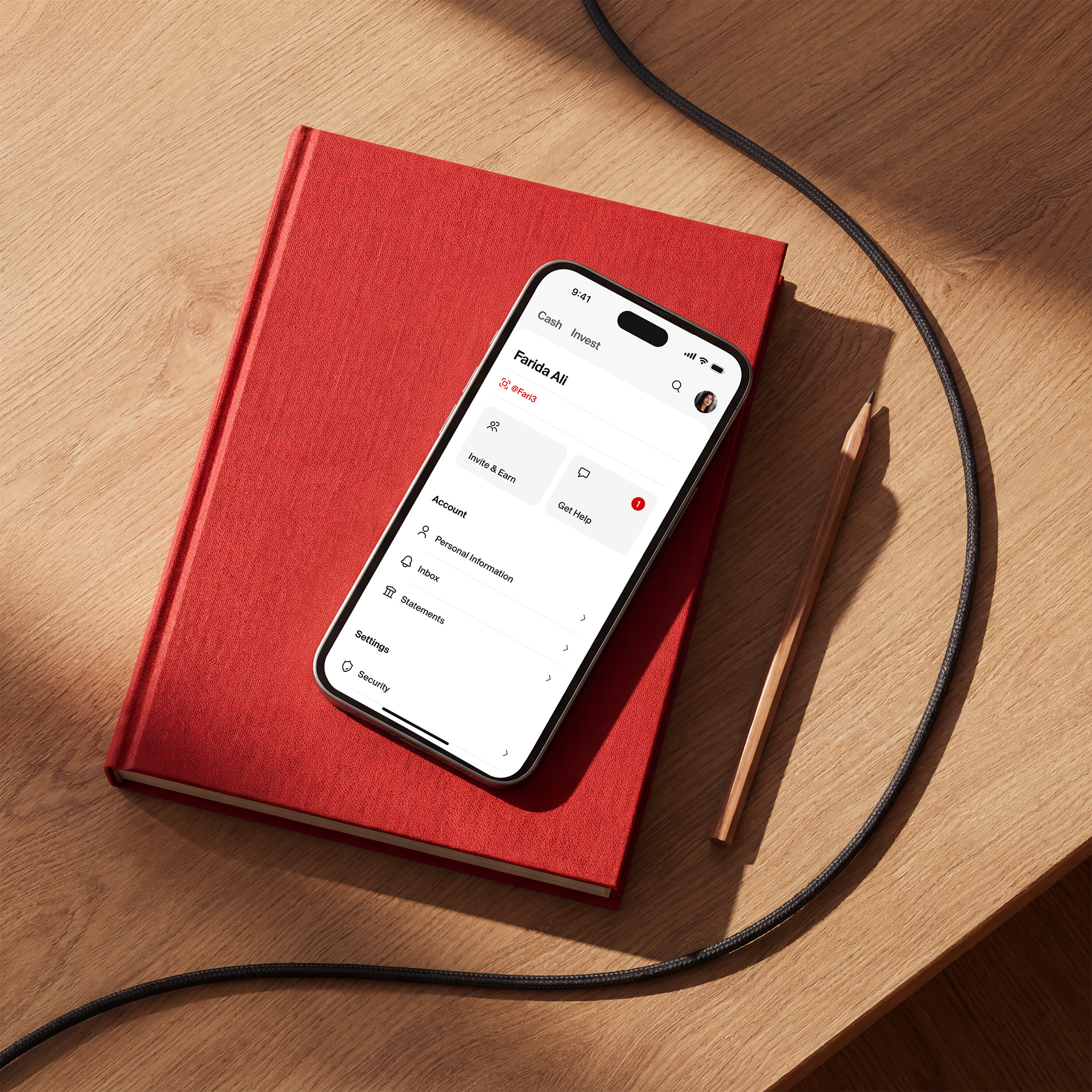
Opening an nsave account takes only a few minutes. Have your identity document ready and follow the steps below.
Before you begin
- Use an email address and phone number you can access.
- Have a valid passport or supported national identity document ready.
- Find a well-lit space for the identity check.
Supported documents
The exact documents available depend on your country. The app shows the current options before verification begins.
Photo tips
- Place the document on a flat surface with all four corners visible.
- Avoid glare, shadows and cropped edges.
- Use the original document rather than a scan or screenshot.
Create your account
Download the app, enter your details and complete identity verification. Once approved, your account details appear in the app.
Download the nsave app
Start by downloading the current version of the nsave app from your device’s official app store. Installing the latest version ensures that the screens and verification steps in this walkthrough match what you see.
Choose your sign-up details
Use an email address and phone number that belong to you and that you expect to keep. These details help you sign in, receive important account messages and recover access if you change devices later.
Confirm your contact information
Enter each verification code as soon as it arrives. If a code expires, request a new one and check that your device has a stable connection before trying again.
Tell us about yourself
The app asks for a few personal details so it can create the correct account profile. Take a moment to review every field before continuing, particularly your full legal name and date of birth.
Match your identity document
Enter your name exactly as it appears on the document you plan to use. Include every given name, preserve the same spelling and avoid nicknames or shortened versions.
Add your residential address
Use the address where you currently live. If the app asks for supporting information, follow the on-screen guidance and make sure any uploaded document is recent and fully readable.
Verify your identity
Identity verification is an important part of opening a financial account. Set aside a few uninterrupted minutes, clean your camera lens and keep your original document nearby before starting.
Scan your document
Follow the frame shown on screen and hold your device steady while the image is captured. Check that the photo, document number and machine-readable area are sharp before submitting it.
Complete the face check
Stand in even light with your whole face visible and remove anything that creates heavy shadows. Follow the movement prompts slowly and keep looking at the screen until the check finishes.
If a check needs another try
A retry usually means the camera could not read part of the document or face scan clearly. Move away from glare, use a plain background and repeat the capture with the document lying flat.
Review your application
Once all required details have been submitted, the app shows that your application is being reviewed. You can close the app and return later without restarting the completed steps.
How the review works
Some applications can be checked automatically, while others need a manual review. Keep notifications enabled so you see any update or request for clarification as soon as it is available.
When more information is requested
Open the request in the app and read the full explanation before uploading anything. Respond with the exact information requested rather than sending several unrelated documents.
Explore your new account
After approval, spend a few minutes exploring the account home screen. This is where you can see available balances, open account details and find the actions supported for each currency.
Find your account details
Select a balance to view the receiving details available to you. Labels and transfer methods can differ by currency, so use the details shown for the specific payment you are expecting.
Copy details safely
Use the copy or share controls in the app instead of typing long account numbers manually. Before sending the details, confirm both the currency and the name of the intended recipient.
Add money for the first time
Choose the balance you want to fund and review its available receiving methods. Start with an amount you are comfortable testing and keep the sending bank’s confirmation until the transfer arrives.
Prepare your first bank transfer
Copy the beneficiary and bank information exactly as displayed. If a reference is provided, include it in the correct reference field so the incoming payment can be identified.
Check the currency before sending
The sending currency should match the receiving details you selected. A bank may offer its own conversion, so review the final currency and amount on the bank’s confirmation screen.
Track the incoming payment
Return to the activity view to look for the payment. Transfer timing depends on the method, sending institution and processing schedule, so keep the receipt if you need to investigate a delay.
Secure your account
A few security checks now can make everyday use easier later. Review your device settings, protect access to your email and never share a sign-in or verification code with another person.
Set up biometric access
If your device supports it, biometric access can reduce the need to enter your passcode in public. Only enable it on a personal device with a secure screen lock.
Review notification settings
Allow important account and transaction notifications. Prompt alerts make it easier to notice a completed transfer, a pending request or activity you do not recognize.
Plan for account recovery
Keep your registered contact details current and maintain secure access to them. If you replace your phone, follow the in-app recovery flow rather than creating a second account.
Common sign-up questions
Most sign-up issues can be resolved by checking the information already entered and following the latest prompt in the app. The sections below provide a few useful places to start.
Why does my name need to match?
Consistent information helps connect your application to your identity document. If your legal name has changed, use the current document and provide supporting information when the app requests it.
Can I finish the application later?
Completed steps are normally saved, but time-sensitive checks may need to be repeated. Return using the same email address and phone number, then continue from the screen shown.
What if I change phones?
Install the app on the new device and sign in with your existing account details. Extra verification may be required because the device is new, so keep your identity document and registered contact methods available.
Your final opening checklist
- Your legal name and personal details match your identity document.
- Your email address and phone number are verified and accessible.
- Your identity photos are clear and every requested step is submitted.
- You can find the correct receiving details for each available currency.
- Security notifications and device protection are enabled.
